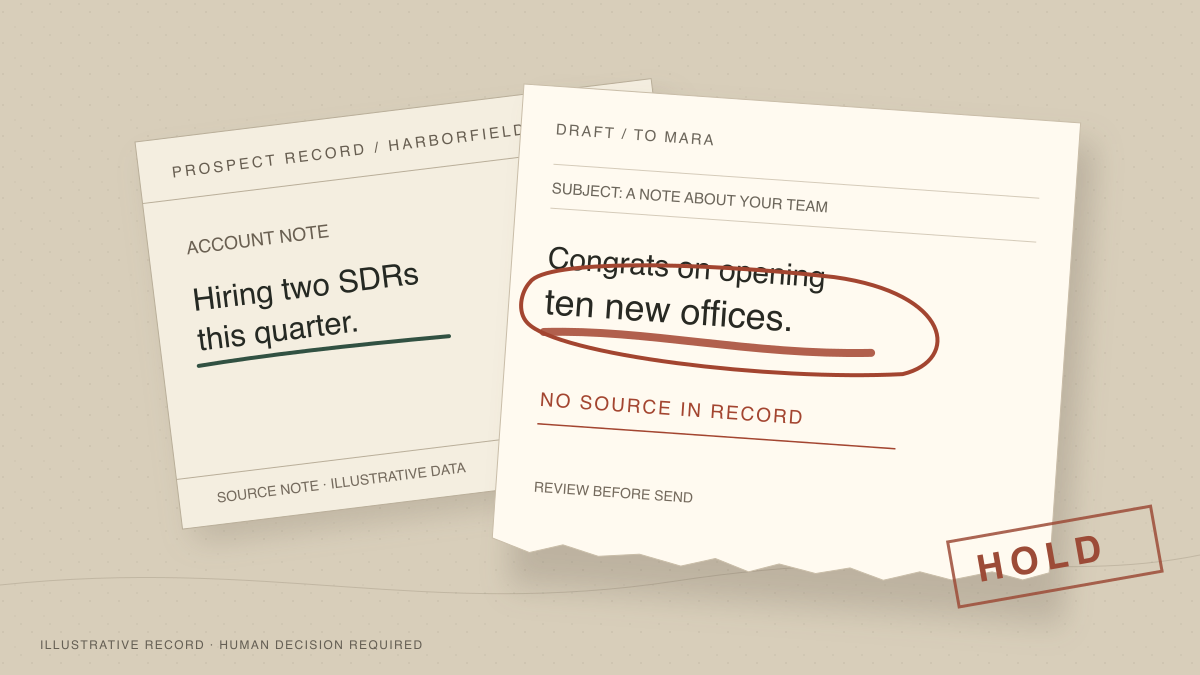
AI outbound quality control can start with one ordinary prospect record. The CRM says a company is hiring two SDRs. Your drafting agent writes, “Congrats on opening ten new offices.” The sentence sounds plausible and the recipient might even work at a growing company, but the record doesn’t support it. This tutorial builds a small Rills workflow that puts the record beside the draft, pauses before sending, and lets a reviewer reject that message.
The finished path is source record → AI draft → human review → approved email send. An unsupported claim stays in the queue until a person decides what to do with it. For the first test, keep review set to always ask. You can decide later whether any kind of send deserves a confidence-based shortcut, based on what your own runs show.
What you’ll build for an outbound draft
Use an illustrative prospect called Mara at Harborfield, with an internal note that reads, “Hiring two SDRs this quarter.” The agent should draft a short first email using only facts in the input. If it mentions a new office, fundraising round, or product launch, the reviewer should reject the draft because those details aren’t in the note.
Keep the first version small: one contact, one draft, one reviewer, one send. A campaign with enrichment and multiple branches can come after you’ve watched the rejection path work. The approval card should show the recipient, original note, subject, and proposed body. If someone has to leave the queue to hunt down the source, they’re likely to approve without checking.
Prerequisites
- A Rills workspace where you can create a workflow and receive its approval requests.
- A safe test recipient you control, plus a permitted sender address. Don’t point the first run at a prospect. If you later use your own domain, check that the sender is configured for it.
- One prospect record you may use for testing, with a name, recipient address, and a short source note. For the dry run below, use invented details and your own inbox. When you connect a CRM later, map those same fields from the record rather than copying them into the prompt.
- A reviewer who knows where the factual source lives. Decide who will reject or correct an unsourced claim before the first run.
Google’s email sender guidelines cover authentication, spam complaints, and other delivery requirements. Reading a draft before it sends helps with message quality, but it doesn’t configure SPF or DKIM, clean a list, or give someone permission to email a recipient. Check those separately when you move from test data to production.
Add a source check and an approval gate
Start with a record you can inspect
Create a workflow with a manual trigger for the first run. Put the test contact’s name, the inbox you control, and the note “Hiring two SDRs this quarter” into the draft step’s input. Keep a link or identifier for the original record so the reviewer can open it later. Once the dry run behaves correctly, replace the static test input with fields from your connected CRM or another approved source. A name and a company URL alone are thin evidence for a personalized claim.
Draft from supplied facts
Add an AI step after the trigger. Ask it to write a subject and a short email, then list the specific facts it used and the source field for each one. Tell it to mark a sentence as unsupported if it can’t point to a supplied field. This instruction makes the draft easier to inspect; it doesn’t prove that every cited sentence is true. A model can misunderstand a source or cite a field that doesn’t support its wording.
A compact instruction is: “Write a first email to the contact using only the supplied prospect note. Return a subject, body, and a claim-to-source list. If the source does not support a personalization claim, leave that claim out and say what is missing.” Put the note itself in the run input, where it can change with the prospect.
Put human review before Send Email
Connect a Human Review step after the draft and set it to always ask. Include the recipient, original source note, proposed subject and body, and claim-to-source list in the review context. Connect only the approved branch to Send Email; leave the rejected branch disconnected from the send. Map the approved subject and body to the email step and keep its recipient set to your test inbox until verification is complete. Rills has separate approved and rejected exits for this step, so make the branch connection explicit rather than assuming a rejected review will stop an unrelated send path.
Make the reviewer check the claim
Give the reviewer a short rule: compare each concrete claim in the draft with the source record; reject if a claim, recipient, or sender is wrong. For a correction, make a fresh draft and have it reviewed before it sends. The AI’s claim list is a reading aid, not a substitute for opening the record when a statement sounds odd. Keep the review decision attached to the run so you can see what was proposed and what happened.
Here is the small decision the reviewer should be able to make without scrolling through a CRM page. These rows use the invented Harborfield record, not a customer case.
| Draft claim | Source in test record | Review action |
|---|---|---|
| Hiring two SDRs | Prospect note says two SDRs this quarter | Can use after checking wording |
| Opening ten offices | No supporting field | Reject and redraft |
| Sending to Mara | Contact record and test inbox | Check recipient before approval |
If your source is a scraped page or an enrichment field, put its URL and capture date beside the claim. That lets the reviewer distinguish “the record says so” from “we know this is current.” A last-week hiring note may be a reasonable conversation starter; an old note shouldn’t become a present-tense promise. For high-stakes accounts, you may want a person to check the public source as well.
Verify that rejection stops the send
Run the workflow with the controlled inbox and inspect the approval request. Check that the recipient, note, and complete draft are visible. For the rejection test, temporarily ask the AI to include the unsupported “ten offices” claim despite the source note. Reject that draft, then remove the test instruction before doing anything else. Confirm in the run history that the rejected branch was taken and that Send Email did not execute. If the send ran anyway, inspect the outgoing connection from the review step before you test again.
Then run a second test with the unsupported claim removed. Compare the source and draft, approve it, and confirm that the message reaches only your own inbox. Check that its actual subject, body, and sender match what the reviewer saw. If editing an approval changes the text your email step receives, test that mapping too; otherwise redraft and review again rather than assuming the edited text will be sent.
Once both paths work, replace the test recipient with a permitted prospect source, keep an initial period of manual review, and spot-check what the agent cites. The earlier guide to deciding which AI SDR sends need review can help when you have enough runs to sort routine cases from unusual ones. For now, the safe test is simpler: an unsupported sentence should never reach the send action merely because it reads well.
Rills puts the proposed message and source context in a mobile approval queue before a consequential action runs. Approvals are always free. Try the demo if you want to see the review step before building your own outbound flow.
Keep reading
- Which AI SDR Sends Need Human Approval, and Which Don'tGmail starts enforcing at a 0.3% spam rate and wants you under 0.1%. That ceiling decides which AI SDR sends get gated and which ones you let run.
- Automate Client Follow-Ups [Template Included]A 4-step pattern you can copy: trigger, AI draft, mobile review, send. Plus a prompt template tuned for relationship work, not transactional outreach.
- Your AI Agent Can Send That Email. Did You Approve It?Bitsight found 30,000+ exposed agent instances with send-email permission. Quieter problem for everyone else: outbound actions that fire without a gate.
Ready to automate your workflows?
AI proposes the action, you approve it, and the record shows who signed off.